Custom reports allow you to create reports with more detailed control than Automatic Reports. (See the article Reports Overview for more information about these formats as well as how Custom Reports compare with Automatic Reports.)
Add Analyses
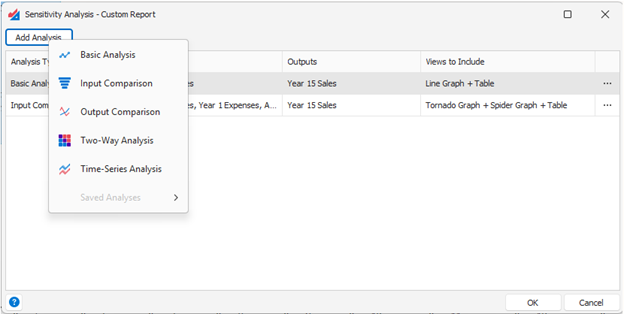
Custom reports are configured by creating a collection of analyses to perform in a group. In the custom report dialog, click the Add Analysis button to drop down a list of analysis types to choose from.
Define an Analysis
You define each analysis in the custom report using a Setup dialog, just like you would setup the analysis normally.
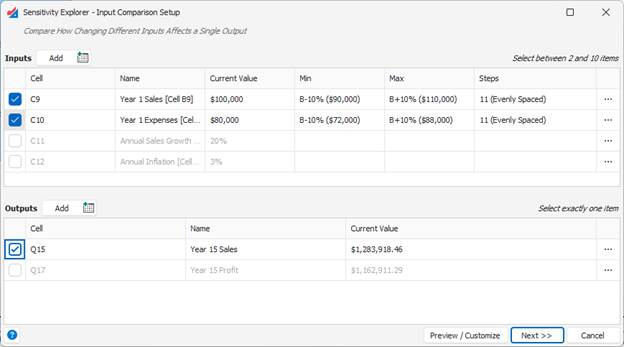
The Preview / Customize button allows you to see the results of this analysis in advance and make customizations to the views that will appear in the report.
The Next button takes you to the next step in the process, selecting the views to include.
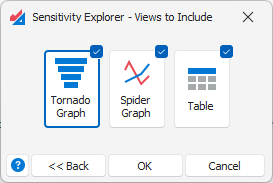
Select Views to Include
One you’ve setup an analysis for the report, you need to select which result views to include from it. Simply check the items you want and click OK.
Choose a Location for the Output File
For PDF and Word reports, you next need to specify the location where the report will be written. After they are created, the reports will automatically be opened in Word or your default PDF viewer.
You do not need to specify a location for an Excel report. It will be created in a new workbook.
Was this article helpful?
That’s Great!
Thank you for your feedback
Sorry! We couldn't be helpful
Thank you for your feedback
Feedback sent
We appreciate your effort and will try to fix the article