Sensitivity Explorer offers an array of different analyses you can perform:
Basic Analysis – See how changes in one input affect one output.
Input Comparison – Analyze the relative impact of multiple inputs on a single output.
Output Comparison – Analyze how a single input affects multiple outputs.
Two-Way Analysis – Examine how simultaneous changes in two inputs affect an output.
Time Series Analysis – Analyze how changes in an input affect a time-series range.
Analysis Setup
The setup of each of the analyses is the same. You start by choosing the inputs and outputs to use in the Analysis Setup Dialog. You may want to change the name of an input or output, or the parameters that define how the input will be varied during the analysis. See the article Inputs and Outputs Overview for more information.
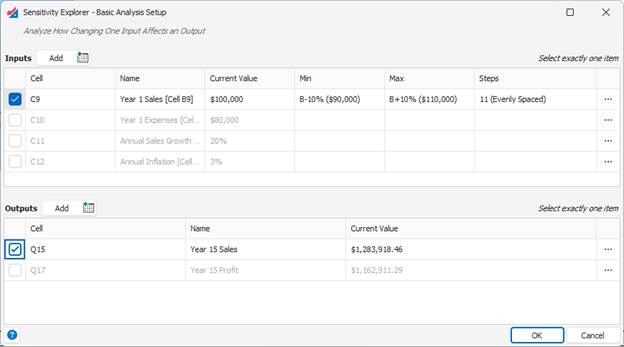
Analysis Calculations
When you click the OK button from the Setup dialog, Sensitivity Explorer will then recalculate your model many times, based on the selections you provided. For each of these calculations, it will record the cell values, in order to build a table of results.
Analysis Results
When this process is completed, you can explore the results in an Analysis Results Window:
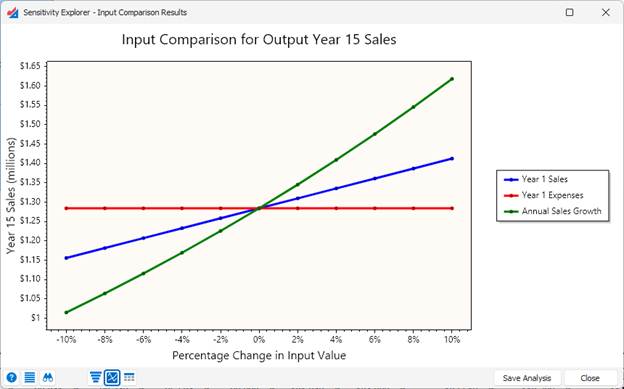
While the details of what this window shows will be different for each type of analysis, they all respect the same template.

The Actions button at the bottom left contains functionality that allows you to customize graph and tables, copy them to the clipboard, or export them to Excel.

The Inspector button opens a panel to the right of the graph that lets you focus in on any of the values in more detail:
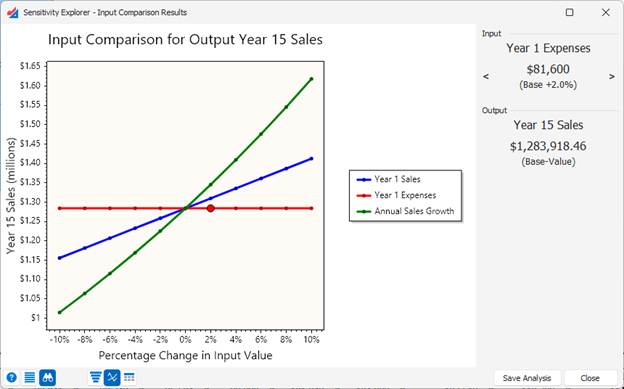

The View Buttons allow you to see different representations of the same set of results. For example, in an Output Comparison, you can see a tornado graph, a spider graph, or a sensitivity table.
The Save Analysis option allows you to save the exact set of the setting that created this set of results, along with any customizations you applied to the window, so that you can rerun that analysis again. See the Saved Analyses article for more information.
Was this article helpful?
That’s Great!
Thank you for your feedback
Sorry! We couldn't be helpful
Thank you for your feedback
Feedback sent
We appreciate your effort and will try to fix the article