Saved Analyses
Any analysis you perform can be saved in the workbook so you can return to it later. This is done by clicking the Save Analysis button at the bottom of the analysis result window:
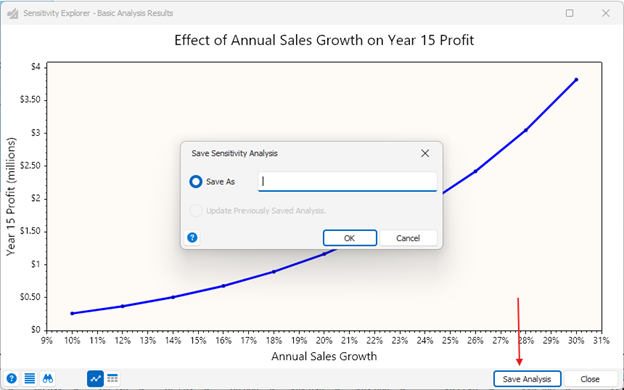
This will show a small dialog where you can enter a name for the analysis. (If you have previously saved this analysis, you will be given a choice between updating the analysis you have already saved or saving the results under a new name.)
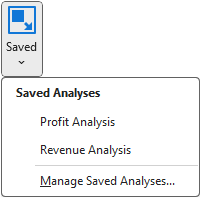
The Saved Analysis ribbon menu contains a list of all the analyses you have saved in this way. By choosing an item in this list, you will return to the analysis setup dialog exactly as you specified it when the analysis was first run. If necessary you can make any changes you like before rerunning the analysis. In addition, any customizations you made to the graphs or tables will be reapplied.
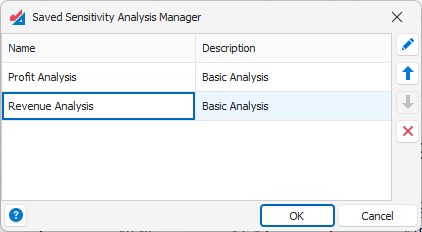
If you want to rename, reorder, or delete any of your saved analysis, select the Manage Saved Analysis from the ribbon drop down menu. That will display the Saved Sensitivity Analysis Manager. Use the buttons to the right to edit the analysis list.
Was this article helpful?
That’s Great!
Thank you for your feedback
Sorry! We couldn't be helpful
Thank you for your feedback
Feedback sent
We appreciate your effort and will try to fix the article