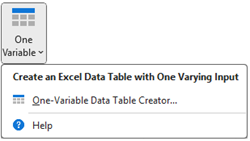
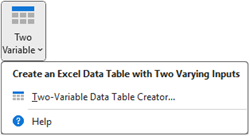
The Data Table Creator is a tool for quickly making nicely formatted Excel data tables. (See the article Excel Data Table Overview for general information about Excel data tables, what they are used for, their advantages and disadvantages, and how Sensitivity Explorer improves upon them.)
Excel data tables come in two flavors: one-variable and two-variable. The Sensitivity Explorer add-in allows you to create either one. One-variable data tables require exactly one input and any number of outputs. Two variable data tables require two inputs and a single output.
Choose Inputs and Outputs
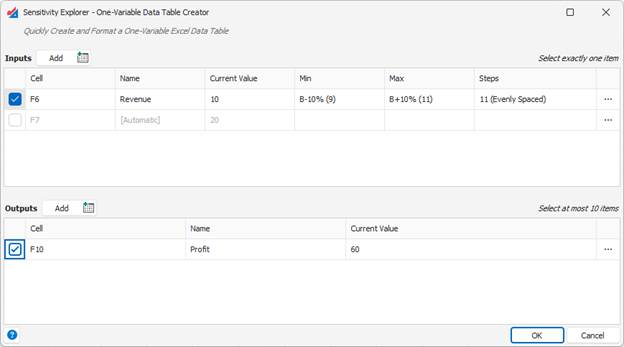
Start by selecting the inputs and outputs. If you have already created inputs and outputs for this workbook, you can simply check them from the list. If not, click the “Add” buttons to create them and then edit their properties in the tables. (See the article Working with Inputs and Outputs for more information.)
Please note: Excel imposes the restriction that the inputs must all be located on the same worksheet as the data table. The Sensitivity Explorer add-in will help you respect this rule.
Specify the Upper-Left Cell of the Data Table
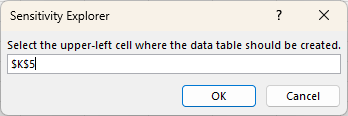
Once you’ve specified the inputs and outputs, the next step is to specify where the Data Table should be located. You will be prompted to supply the upper-left cell:
Specify Data Table Options (Optional)
Once you’ve specified the inputs and outputs, the next optional step is to specify the Data Table options:
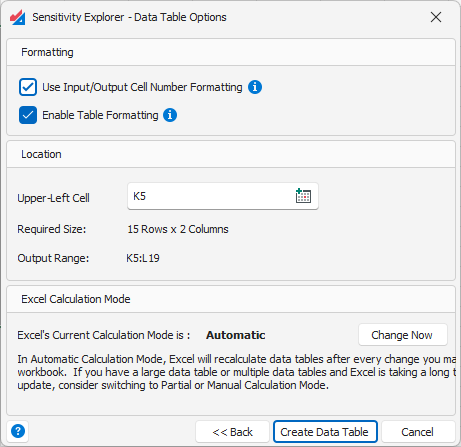
Use Input/Output Cell Number Formatting – If checked this will apply the cell number formatting of your input and output cells directly to the appropriate columns of the data table. Most of the time, this will be appropriate. However, sometimes that formatting might not have enough precision, and you can either uncheck this option, or override that number formatting manually.
Enable Table Formatting – If checked this will apply formatting to the Excel data table to make it easier to read and understand. It adds headers, footers, column- and row- labels, as well as potentially resizing the columns of your worksheet.
Location - In this box, the upper-left cell that you previously supplied is shown, along with information about range the table will occupy when created. You will receive a warning if there is overlap between the table and the current contents of the spreadsheet. If necessary you can change the upper-left cell to a different location.
Excel Calculation Mode – By default Excel Data Tables cause your workbook to recalculate multiple times every time you make a change to it. Usually this is desirable, but when you have a large data table, or multiple data tables, this can take too long and Excel can become sluggish. Excel has a solution for this problem, letting you change its calculation mode to “Manual” or “Partial”. In Partial calculation mode, Excel calculates normally, except for data tables that require you to press the F9 to force their update. In Manual, Excel only recalculates when you press the F9 key.
Change Now - You can change Excel calculation mode in the Formulas tab of the Excel ribbon, but this button provides a convenient shortcut for doing that action as part of the data table creation process.
Create the Data Table
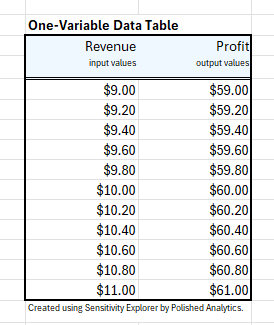
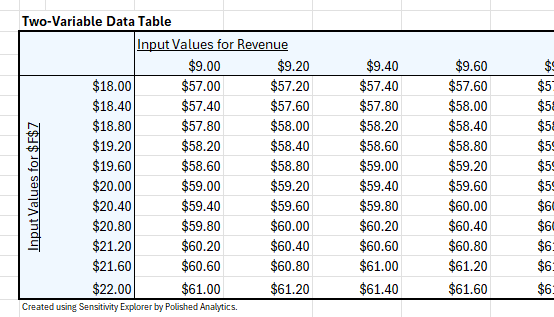
To make the data table, simply click the “Create Data Table” button in the Data Table Options dialog. Depending on which type of Excel data table you requested you will see either a one-variable or two-variable data table at the location you specified:
For more general information about Excel data tables, see the article Excel Data Table Overview.
Was this article helpful?
That’s Great!
Thank you for your feedback
Sorry! We couldn't be helpful
Thank you for your feedback
Feedback sent
We appreciate your effort and will try to fix the article