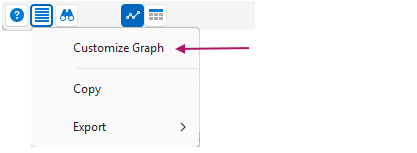
Any analysis graph can be customized by dropping down the Actions menu on the window where the graph is displayed and selecting the Customize Graph button. This will display the Graph Customization dialog:
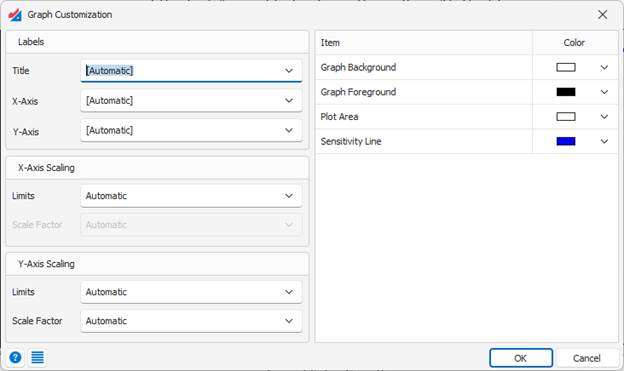
Labels – The controls in this group (Title, X-Axis, and Y-Axis) allow you to enter custom text for these labels. The drop-down portion of the controls provide an “Automatic” item to restore the default value determined automatically by Sensitivity Explorer.
Axis Scaling Limits – Sensitivity Explorer will automatically choose appropriate limits for your graphs so that all the important information is displayed. However, if you need to modify these limits drop down the control to customize them.
Axis Scale Factors – Sensitivity Explorer will automatically apply scale-factors to the graph axes to prevent extremely large numbers from being displayed in the tick labels. For example, it might choose to scale the axis by a factor of a billion and then add a label to the graph to indicate that fact. You can drop down this control to customize the scale-factor label used or turn it off completely.
Colors – The right side of the window contains a grid displaying all the customizable colors for the graph. Any color can be changed by clicking the drop-down arrow associated with it.
Please note: Customizations to the graph will only be permanent if you save the analysis. See the article Saving Analyses for more information.
Was this article helpful?
That’s Great!
Thank you for your feedback
Sorry! We couldn't be helpful
Thank you for your feedback
Feedback sent
We appreciate your effort and will try to fix the article